
Picture Supply: https://www.pexels.com/photo/close-up-shot-of-keyboard-buttons-2882630/
In our increasingly digital lives, managing passwords across multiple devices has become both a necessity and a challenge. From desktops to smartphones, tablets, and even smartwatches, each device needs access to a variety of accounts. With so many devices in play, keeping track of complex passwords while maintaining security can seem daunting. Here’s where some practical strategies and reliable tools, like LastPass, can simplify and secure your digital life across all your devices.
Why Device Security Matters
Each device you use to log into your accounts represents an access point that could be vulnerable to attacks if not properly secured. For instance, using a weak password on a smartphone could expose your social media or bank accounts if the device is stolen or hacked. A thorough approach to password management is necessary to stop unwanted access and protect your private data.
Tip 1: Use a Password Manager to Centralize Your Passwords
Anyone who manages passwords on several devices will find a password manager to be a very useful tool. By storing your passwords securely, a password manager like LastPass saves you the hassle of remembering complex passwords for each device. Additionally, password managers provide features like multi-device sync and automated login, allowing you to easily access your accounts from any device.

With a password management application, you have a centralized, encrypted vault for all your passwords, accessible through a master password. This means you only need to remember one strong password while it takes care of the rest, generating and storing unique passwords for each account. This way, you can easily access your credentials from any device without compromising security.
Tip 2: Enable Multi-Factor Authentication (MFA) on Key Accounts
By demanding additional verification in addition to a password, multi-factor authentication (MFA) strengthens the security of your accounts. For example, you may receive a code on your mobile device or have to approve a login through a separate app. Enabling MFA is particularly important for sensitive accounts like email, banking, and work-related platforms.
Many password managers, support MFA and can even function as an authenticator, simplifying the process. You may increase device security and stop unauthorized users from accessing your devices by integrating MFA with your password management solution.
Tip 3: Keep Passwords Unique for Each Account
Reusing passwords across accounts can have disastrous consequences if one account gets hacked. For instance, if you use the same password for both your email and social media accounts, a compromise in one can easily lead to access to the other. By using a distinct password for every account, you can make sure that your other accounts are safe even in the event that one is compromised.
LastPass has the benefit of creating strong, one-of-a-kind passwords for every account, so you don’t have to think about or remember various ones. It also offers password analysis tools, so you can check if you’re reusing any passwords and change them to enhance security across all your devices.
Tip 4: Regularly Update and Review Your Passwords
Updating your passwords periodically is a good habit to maintain, especially for critical accounts. Changing passwords every few months can prevent long-term exposure in case of a breach. Many users tend to keep the same passwords indefinitely, but a simple refresh can improve security.
A tool like LastPass makes updating passwords across multiple devices easy by syncing any changes in real-time. So, when you update a password on your laptop, it’s automatically available on your phone and tablet as well. Regularly reviewing your stored passwords with security dashboard can also help identify weak or outdated passwords that need to be updated.
Tip 5: Use Strong Passwords Tailored for Each Device
While it’s tempting to use easy-to-remember passwords across all devices, strong passwords are essential for comprehensive security. The ideal password should have a combination of letters, numbers, and symbols and at least 12 characters. By using random, complex passwords for each device, you make it harder for hackers to guess your credentials.
LastPass helps streamline the process by generating secure passwords for you and securely storing them. When logging in from different devices, it autofills the required password, so you don’t have to remember or type it manually. This saves time and ensures you’re always using the strongest password available.
Tip 6: Enable Device-Specific Security Settings
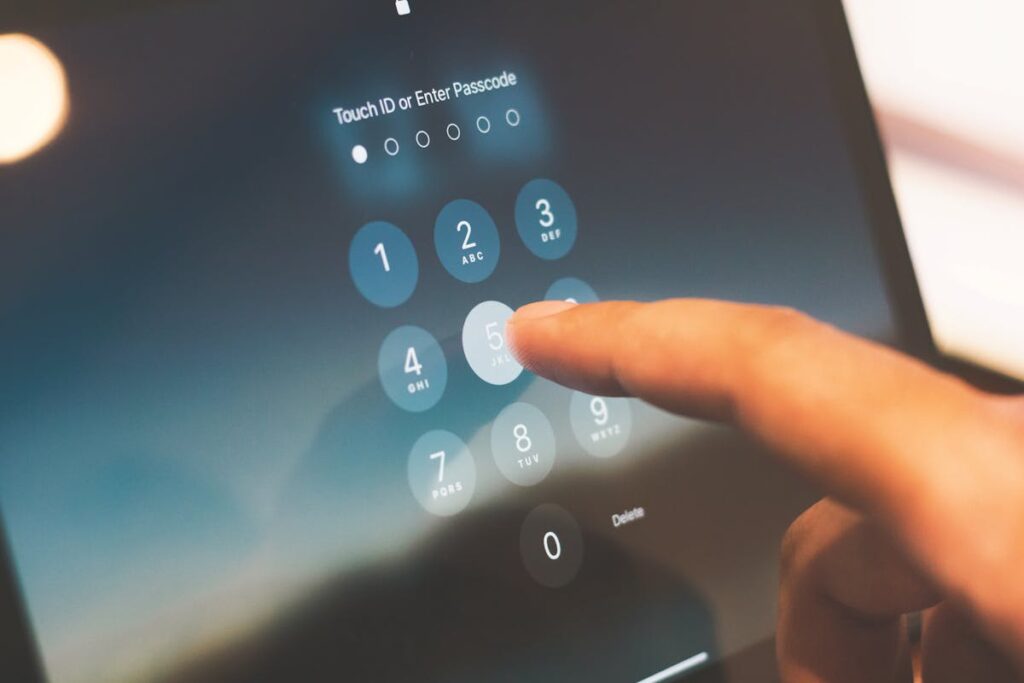
Each device has unique security features that you can use to your advantage. For instance, on mobile devices, enable fingerprint or facial recognition for added security. For computers, you may set up a PIN or use a hardware security key.
With LastPass, you can access additional security features like device-specific authentication, which adds another layer of verification for devices that may require extra protection. By configuring security settings specific to each device, you create an added layer of security that works in tandem with your password manager.
Tip 7: Be Cautious with Public Wi-Fi and Untrusted Devices
Accessing accounts on public Wi-Fi or untrusted devices can expose your passwords to various risks, including potential interception by hackers. To stay safe on public networks, avoid logging into sensitive accounts or, if necessary, use a VPN to encrypt your internet connection.
If you’re using LastPass, you have the peace of mind of knowing that your passwords are stored and transmitted securely. However, it’s still wise to avoid using public computers for logging into sensitive accounts, as keyloggers or malware could be installed. Stick to your personal devices when possible, and limit exposure by logging out after each session.
Tip 8: Back Up Your Master Password and Recovery Options
Make sure your master password is secure and strong because it serves as the key to all of your passwords that are kept in LastPass. Write it down or save it in a secure location, as forgetting it could lock you out of your vault. It’s also a good idea to enable recovery options, like a backup email or biometric access, to regain entry if needed.
If you forget your master password, password management applications provide recovery options, but these should be set up in advance. This ensures that you won’t lose access to your vault in the event of a password mishap, allowing you to maintain control over all your devices.
Managing passwords across multiple devices can be complex, but with the right strategies and tools, it’s easier than ever to maintain security without sacrificing convenience. Using a password manager like centralizes your credentials, making it simple to access them on any device while keeping them secure. By implementing multi-factor authentication, creating unique passwords, and regularly updating your credentials, you can safeguard your accounts against common threats.
With LastPass, you gain a flexible and powerful solution that simplifies password management across all your devices, enabling a safer and more efficient digital experience. As technology continues to evolve, adopting these password practices ensures that you stay one step ahead, protecting your digital life no matter where you are.